ACTUAL MUXPAD RECORDING
Read the code.Define the task.
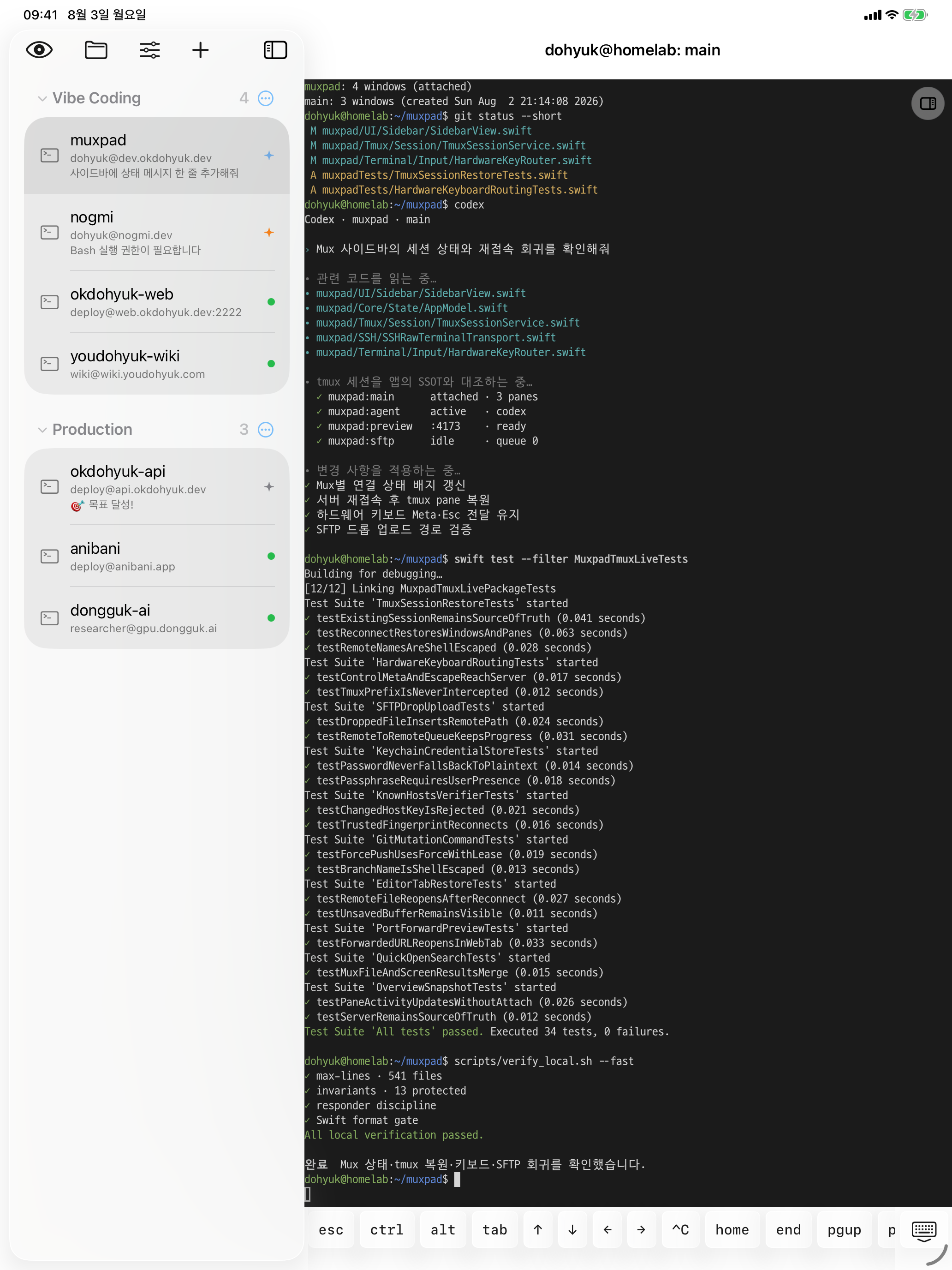
Open a coding agent inside a real MuxPad terminal and prepare a focused instruction.


Preparing the MuxPad experience
0%MUXPAD 1.3.0
tmux stays on your server.
The experience feels native.
Terminal · Git · Editor · Preview · SFTP
Actual MuxPad capture · Scroll to play
ACTUAL MUXPAD RECORDING
Open a coding agent inside a real MuxPad terminal and prepare a focused instruction.
PRECISE CONTEXT
Name the file and behavior precisely so the agent can start immediately.

AGENT AT WORK
Stay in the terminal while the agent inspects and changes the relevant files.

VERIFIED RESULT
Confirm the result in the same session. Your tmux workspace remains on the server.


EDIT TO OUTCOME
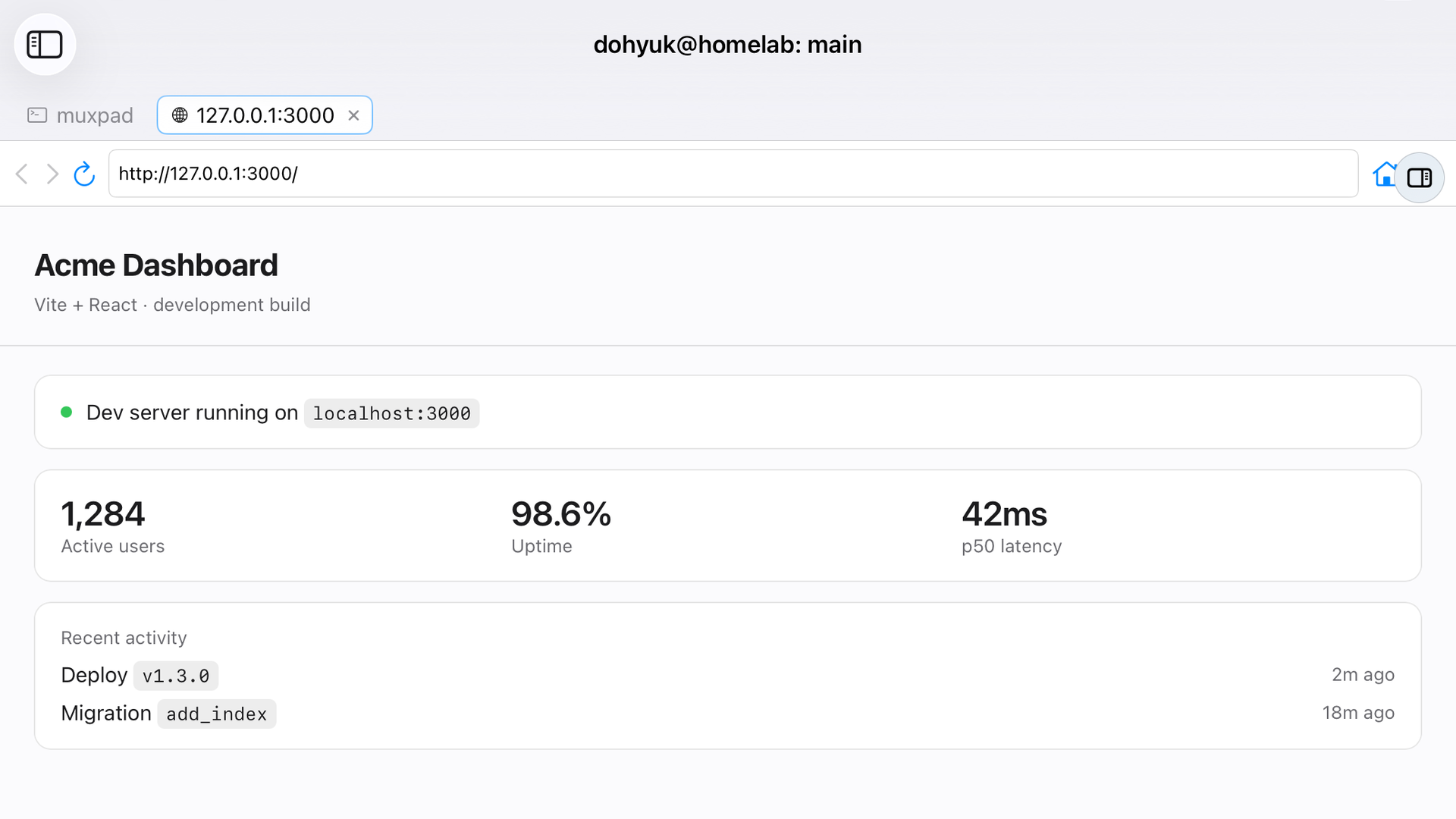
A saved edit stays connected to the development server running in the same Mux.
LIVE CANVAS BLEND
The real live-preview screen is composited into the canvas in direct response to your scroll.
ONE CONTINUOUS LOOP
The actual MuxPad browser opens next, showing the running result at git.okdohyuk.dev/muxpad/.
EDITOR PREVIEW DEPLOYED
CORE MUXPAD WORKFLOWS
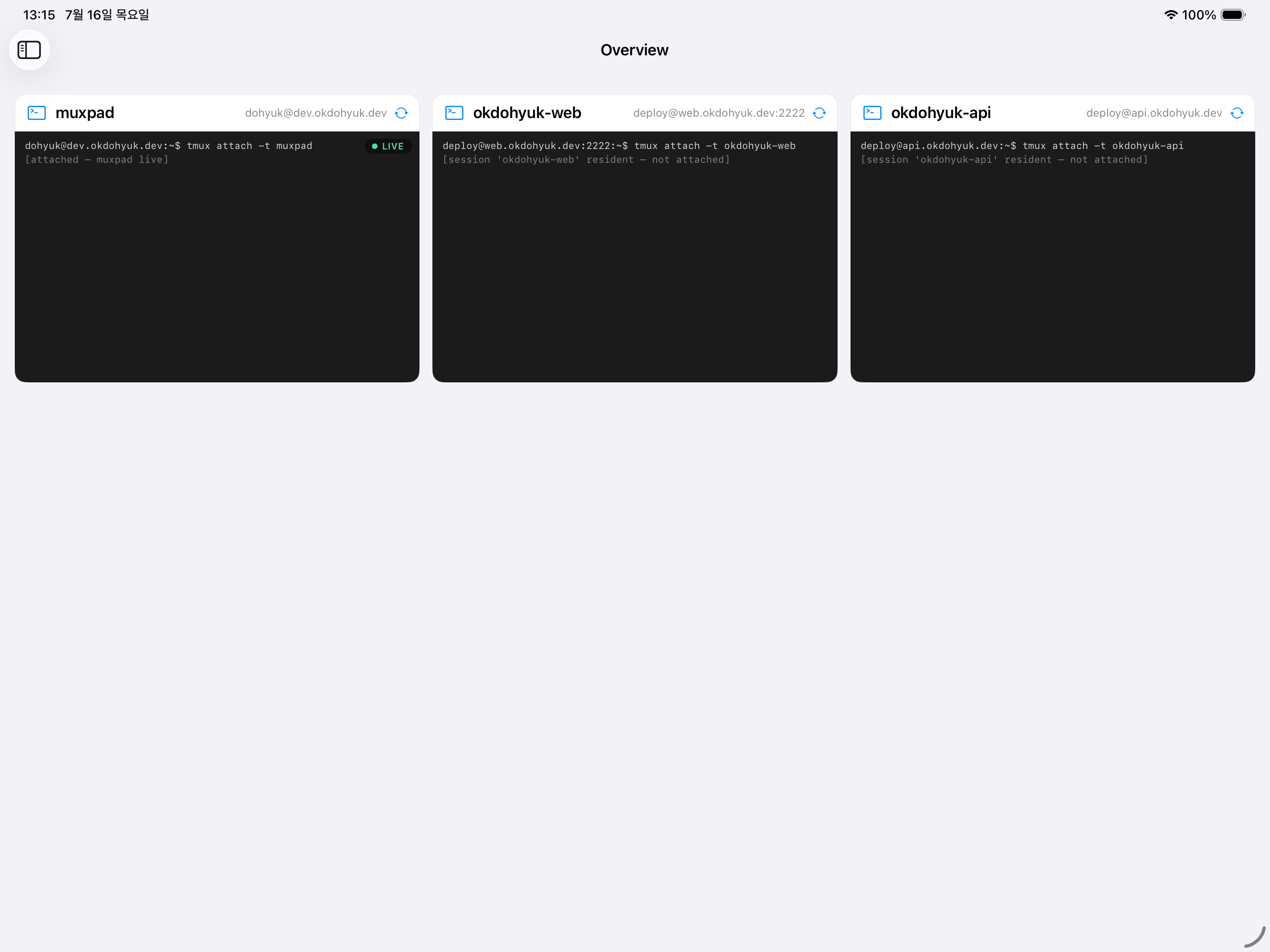
OVERVIEW
See auto-connected Muxes and live tmux state together, then return to the session you need.
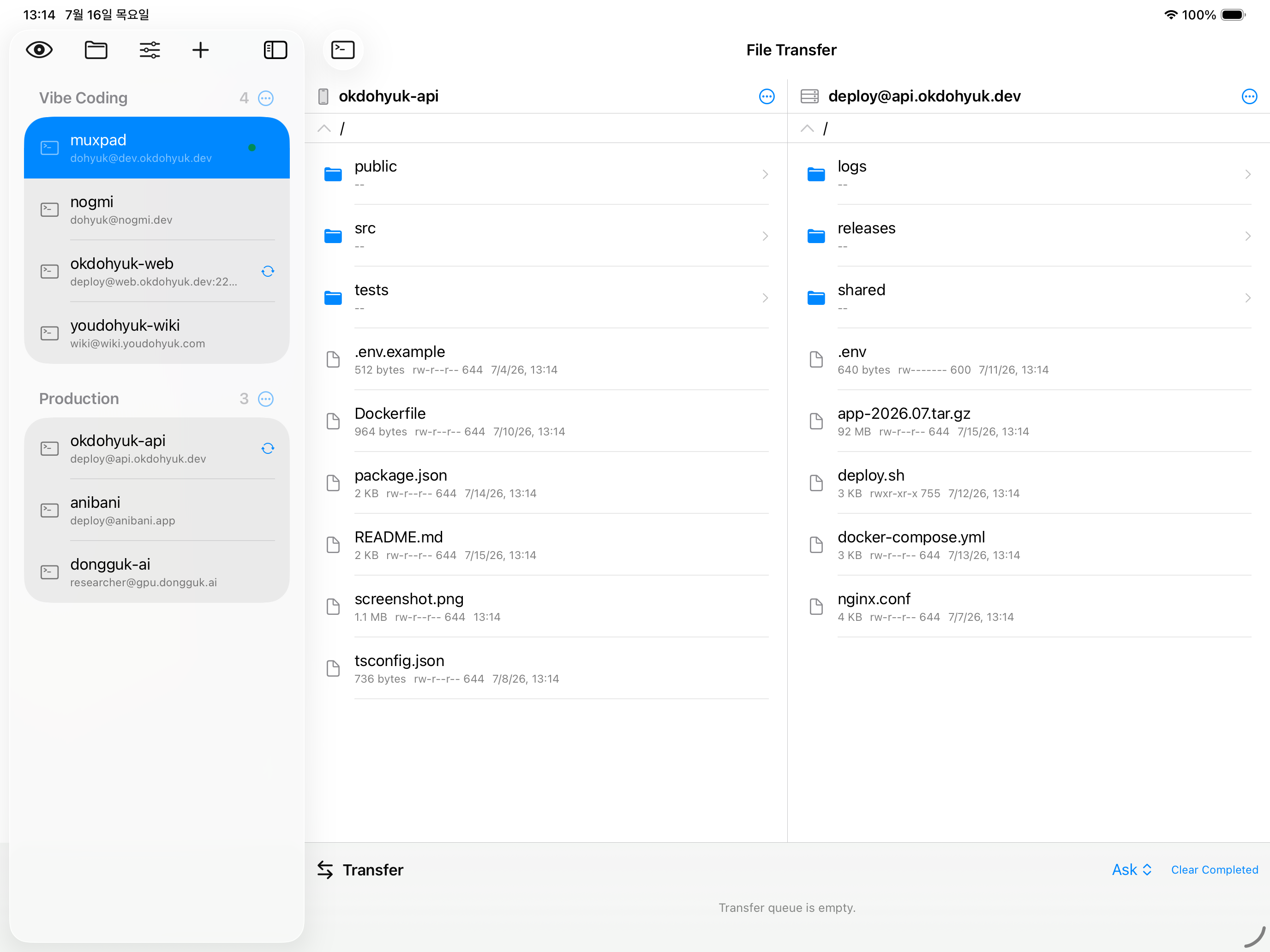
DUAL-PANE SFTP
Move local↔remote or remote↔remote files between two panes, with a transfer queue and progress that stays visible.
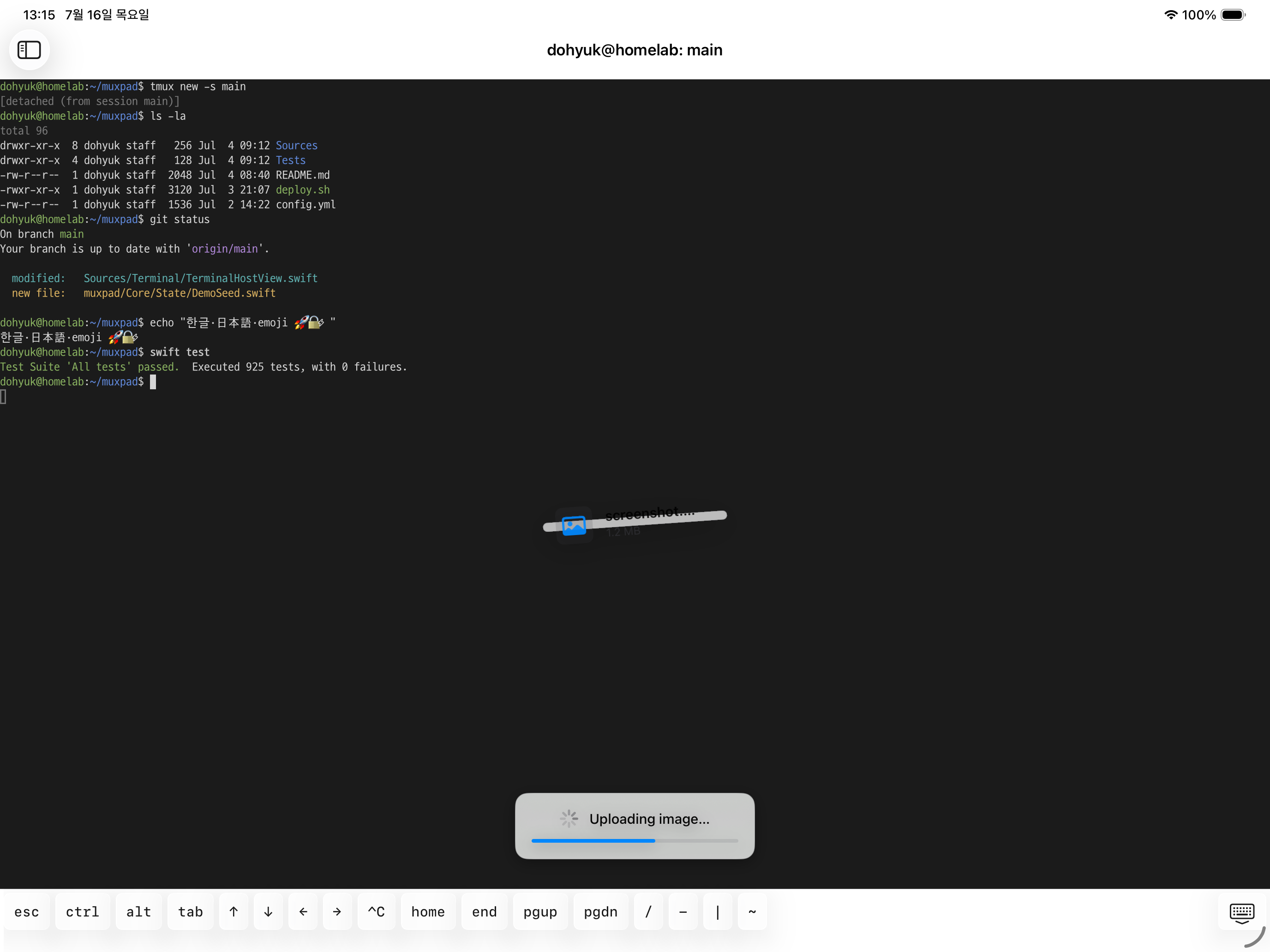
DROP TO TERMINAL
Drop an image or file onto the terminal and MuxPad uploads it over SFTP, then inserts the remote path for your coding agent.
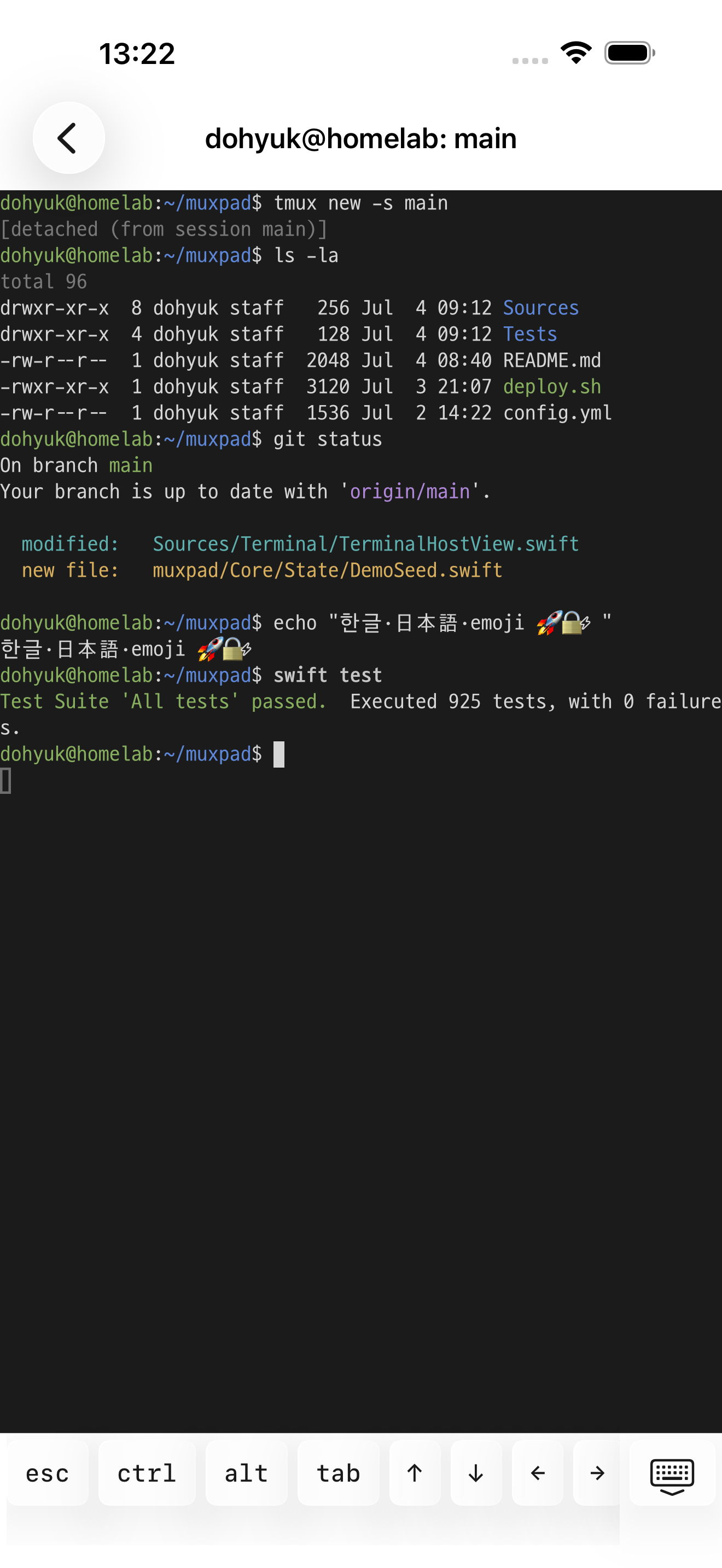
CONTINUE ANYWHERE
Your tmux session stays on the server while hosts and settings sync through iCloud. Reconnect to the same work after you leave the desk.
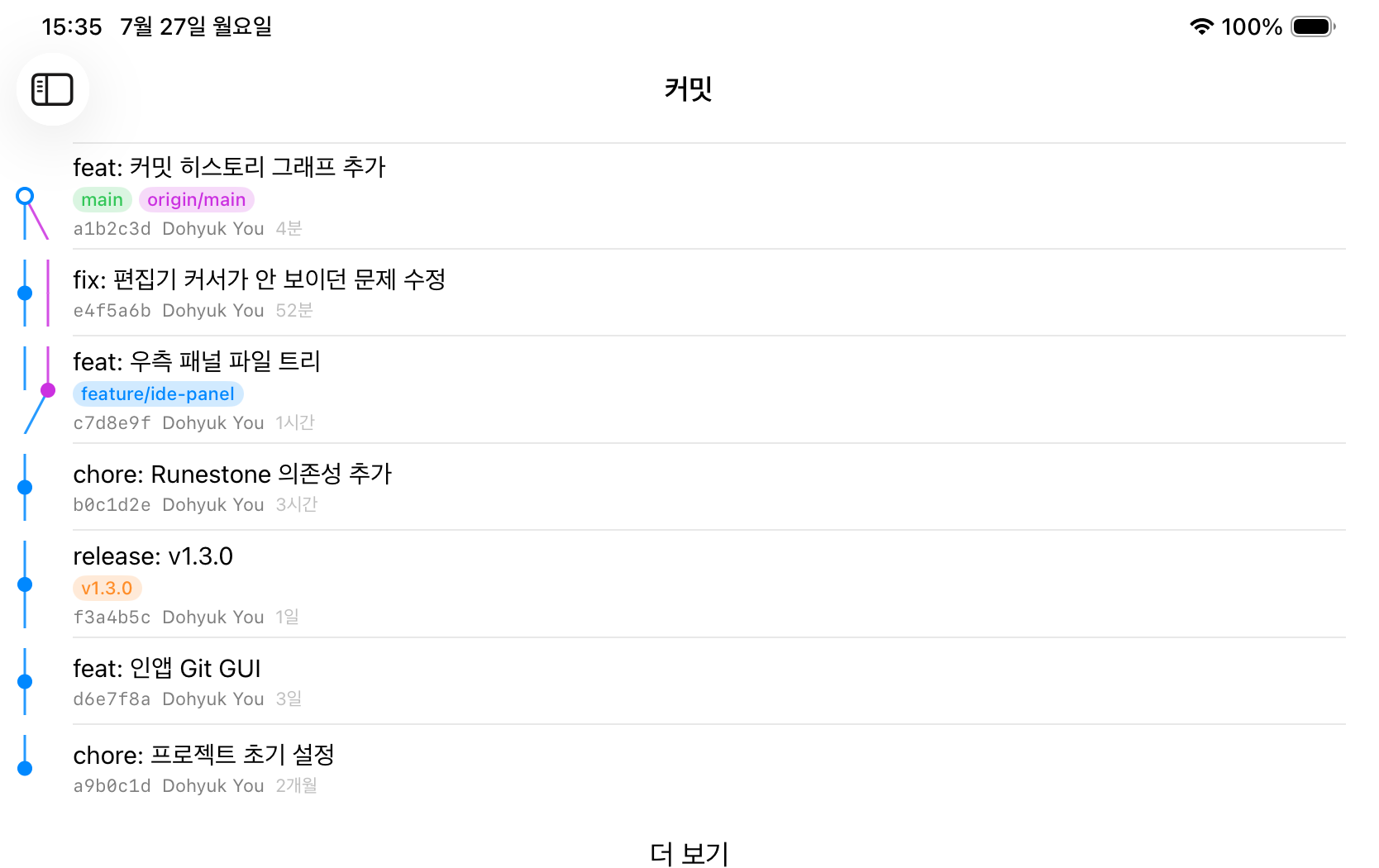
GIT, BUILT IN
Review diffs, stage, commit and push, then manage branches and worktrees. Force push defaults to --force-with-lease.
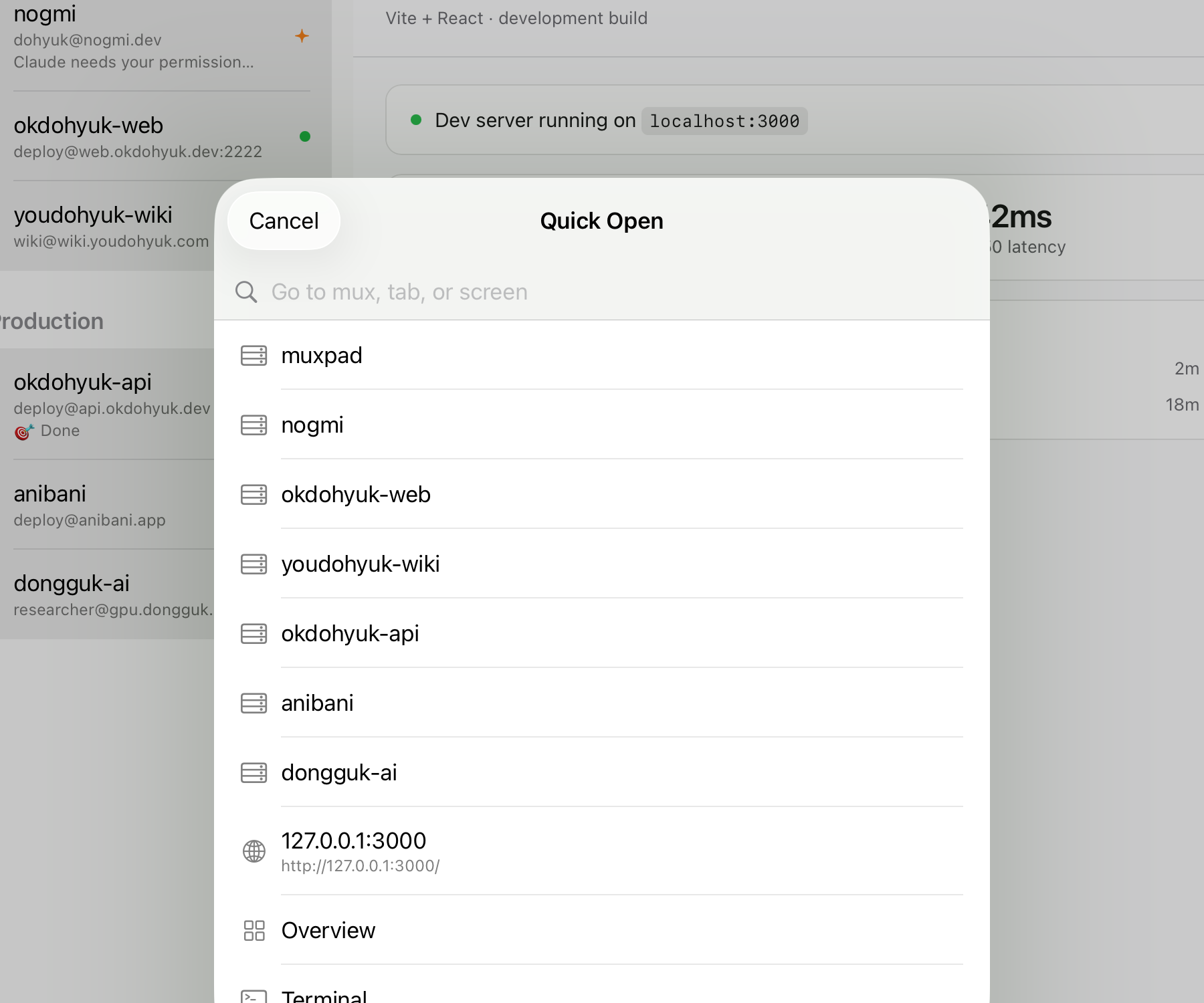
QUICK OPEN
Search Muxes, open tabs and screens together with just a few letters.
MORE IN 1.3.0
After a server reboot, restore windows, splits, working directories and allowed agent conversations.
Read branches, merges and tags, then continue into checkout, merge and cherry-pick actions.
Rapid rotation and Split View changes now reach the remote PTY in the right order.
RAW TMUX, NATIVE EXPERIENCE
MuxPad does not imitate tmux. It reflects the sessions you already own.
Your prefix, bindings, status bar and layout remain intact.
Control chars, Meta, Esc and copy-mode all reach the server.
MuxPad never edits ~/.tmux.conf or requires server plugins.
PRIVATE BY DESIGN
No tracking and no MuxPad cloud. Just known_hosts verification, optional Face ID and your own iCloud sync.
Explore the privacy design
Start on iPad and iPhone today.
Download on the App Store